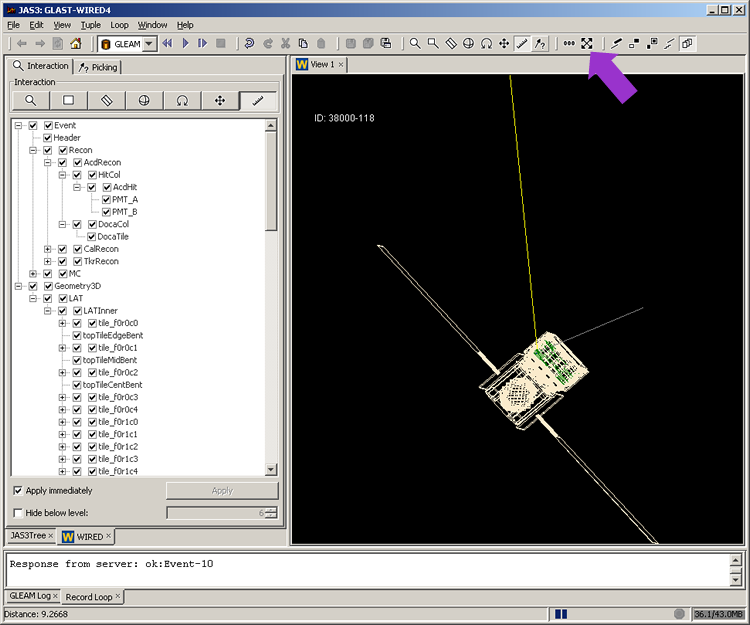
"Reset/Rewind" button to return to the first event.
Examples: Interacting with WIRED
Note: Use the "Reset/Rewind" button to return to the first event.
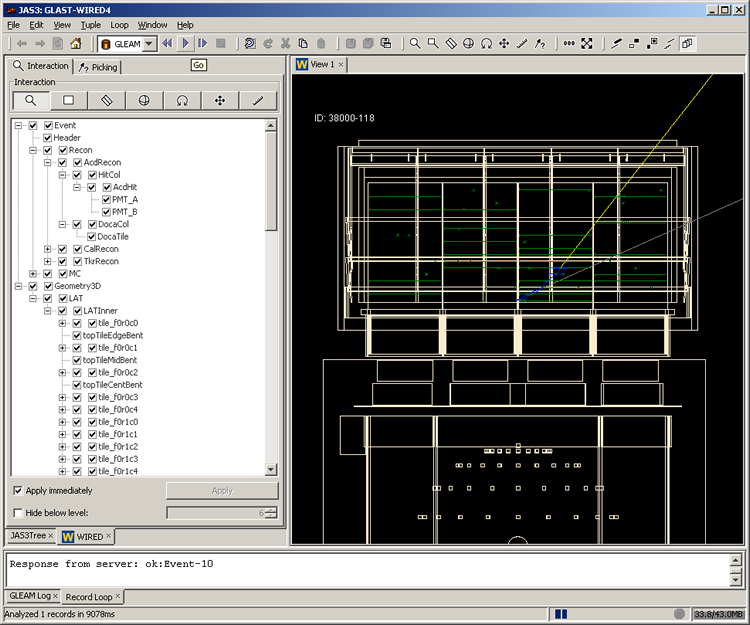
Tip: If, at any time, you wish to fit all visible objects in a View Window, use the  "Fit visible ..." button.
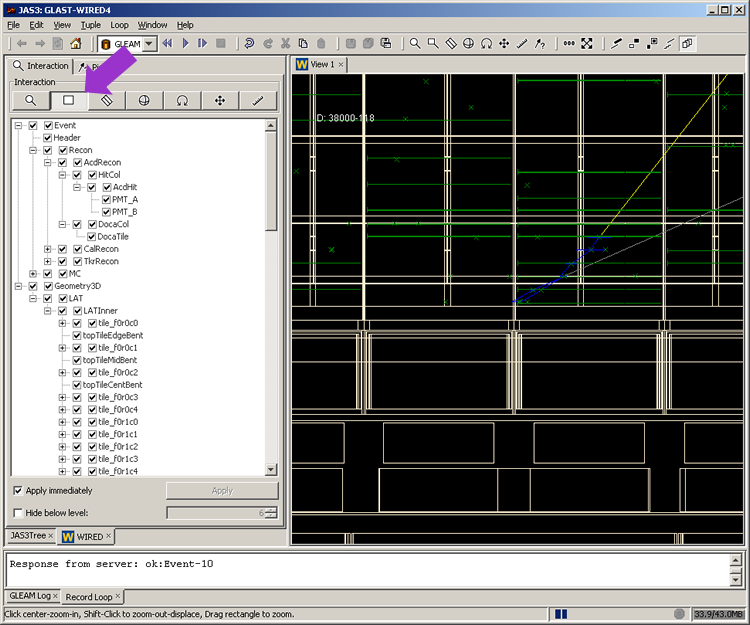
Select  , then click and drag to define and zoom in on an area of interest ("shift click" to zoom out);
"click and hold" to move the object; tip: use center wheel on your mouse (if available) to zoom in and out.
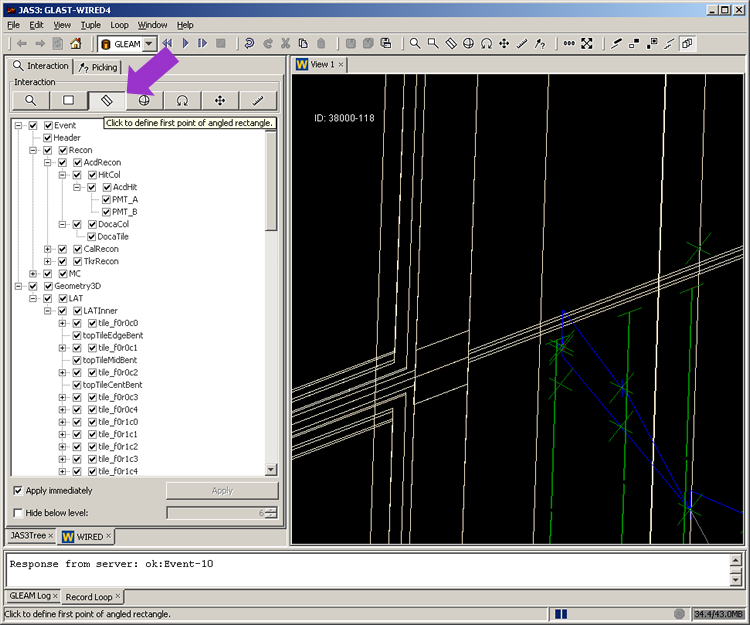
Select  to define angled rectangle.
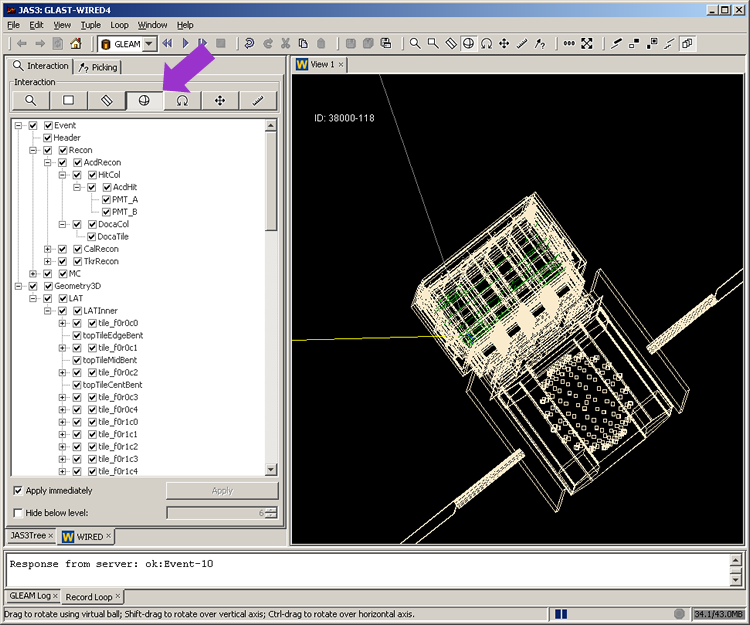
Select  , then click and drag to rotate image.
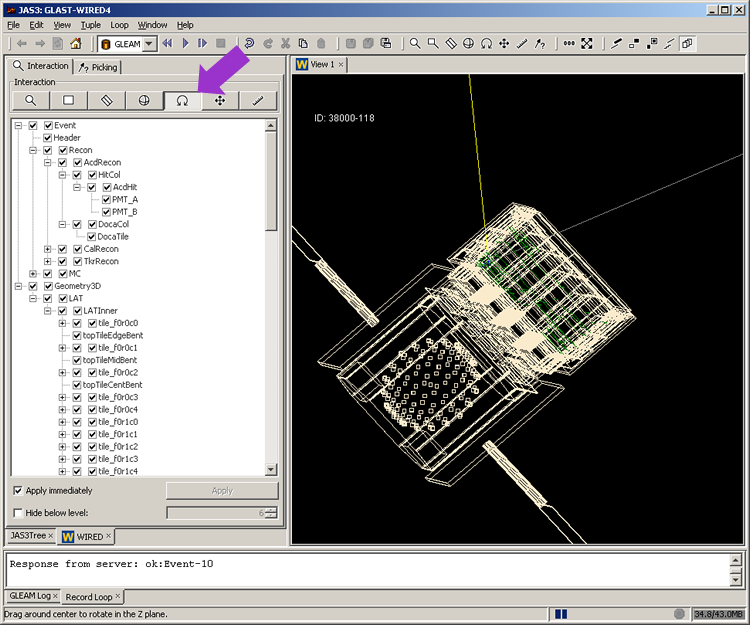
Select  and drag around center to rotate image in the Z plane.
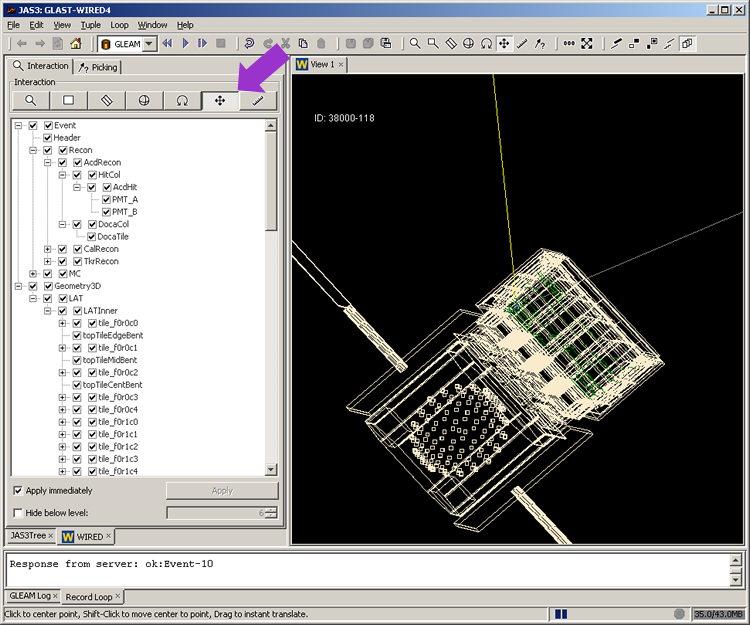
Select  and center point.
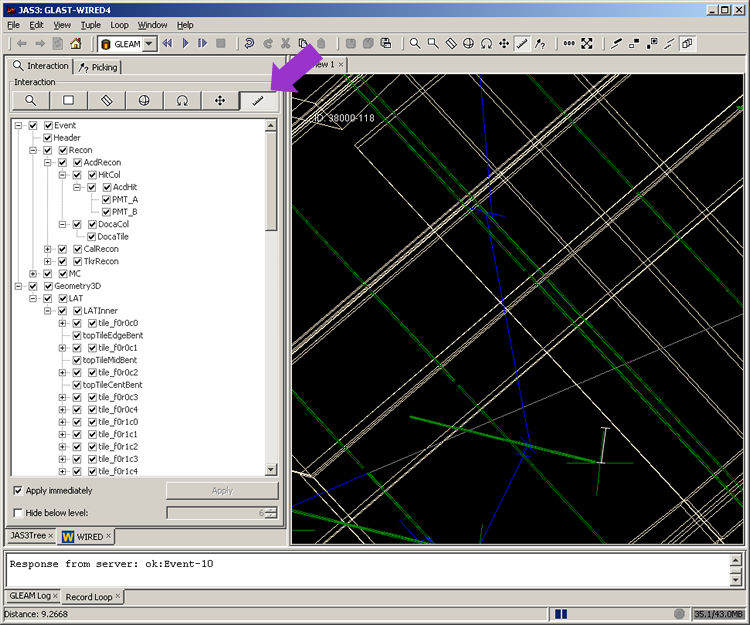
Select  and set – and measure between – points.
Click on to scale and fit all visible objects in window.